Creating Packaging & Shipping Supplies
This article explains how to create and manage packaging entries in Cahoot's Packaging Manager. Use packaging entries to configure Package Manager Data for your SKUs, track inventory and reorder points, or send packaging supplies with an inbound shipment.
Packaging Types
Cahoot supports three types of packaging:
- Boxes — Rigid rectangular shipping containers. SKU shipping rates are calculated using box dimensions. Can be enabled for 3D Bin Packing automation (Shipping Software Sellers only). Best for fragile or structured items.
- Mailers — Flexible packaging such as bubble mailers and poly mailers. When a mailer is used as Package Data, Cahoot uses product dimensions (not mailer dimensions) to calculate shipping rates. Cannot be used for 3D Bin Packing automation. Best for soft goods and non-fragile items.
- Supplies — Additional materials needed for safe shipping, such as bubble wrap, kraft paper, inserts, and stickers. Up to 3 supplies can be assigned per SKU in Package Data.
Step-by-Step Guide
1Go to Settings > Packaging Manager tab.
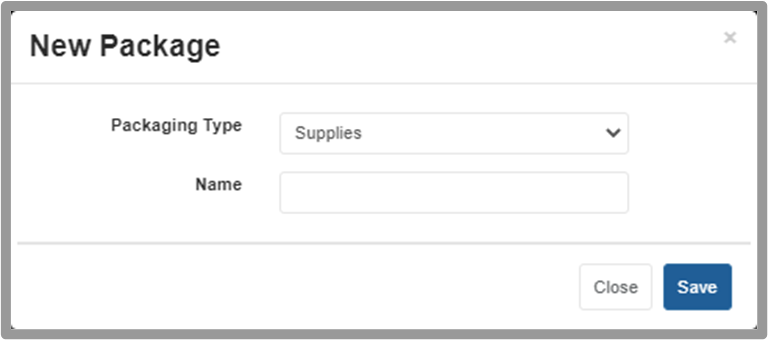
2Click Add New.
3Select the Packaging Type: Box, Mailer, or Supplies.
4Enter the required fields:
- Name — A descriptive name for the packaging
- Packaging SKU — A unique identifier for this packaging entry
- Dimensions — Length, Width, Height (in inches)
5Click Save to create the packaging entry.
Optional Configuration & Automation
3D Bin Packing Automation
- Use for MLMQ Automation — Enable this if you want Cahoot to consider this box for Multi-line/Multi-quantity automation. Only applies to boxes, not mailers. Ensure packaging quantity is added before enabling.
Cost & Inventory Management
- Reorder Point — Set a low-stock alert threshold
- Packaging Cost/Unit — Track per-unit packaging costs (critical for Fulfillment Partners)
- Packaging Weight (oz.) — Weight of the empty packaging
Warehouse Organization
- Bin Location — Where the packaging is stored in the warehouse
- Barcode — For use with scanning systems
Case Pack Information
- Units Per Master Case — Number of individual packages per case
- Master Case Dimensions — L × W × H of the shipping case
- Master Case Weight (oz.) — Weight of the full case
Managing Packaging Quantity & Adjustments
Adding Initial Quantities
1Go to Inventory > Add Packaging Inventory.
2Select Packaging Receipt as the transaction type, then click Add New Packaging to search your packaging entries.
3Update the Adjust Qty By values for each packaging type.
4Click Submit Adjustments to save.
Tracking Adjustment History
1Go to Inventory > Inventory Transactions.
2View all recent packaging and product adjustment transactions.
3Click any Transaction # to view detailed information about what was adjusted, when, and by whom.
Packaging Types Explained
Boxes
Rigid rectangular shipping containers used for structured or fragile items. When a SKU's Package Data references a box, Cahoot uses the box dimensions to calculate shipping rates. Boxes can be enabled for 3D Bin Packing automation (Shipping Software Sellers only).
Mailers
Flexible packaging such as bubble mailers and poly mailers, best for soft goods and non-fragile items. Mailers cannot be used for 3D Bin Packing automation.
Supplies
Additional materials used to protect items during shipping, such as bubble wrap, kraft paper, inserts, and stickers. Up to 3 supplies can be assigned per SKU in Package Data via the Additional Options section.
Video & Additional Resources
Shipping Software Sellers
- Configuring Package Manager Data for SKUs
- Automatic Box Selection for Multi-Item Orders
- Creating Shipping Labels: Complete Guide
Network Sellers
- Creating Inbound Shipments
- Preparing Inbound Shipment Guidelines
- Using Custom or Branded Packaging at Cahoot Locations
- Standard Packaging at Cahoot Locations