Creating USPS End of Day SCAN Forms
USPS requires a shipping manifest that lists all the shipments for that day. Carriers may refer to this as a USPS SCAN form, or Shipment Confirmation Acceptance Notice. This guide will walk you through creating and submitting these required forms.
Prerequisites
- All USPS shipping labels must be created and printed
- All packages must be packed and ready for pickup
- Verify pickup scheduling with USPS
- Ensure you're completing this on the same day labels were created
Critical Timing Requirements
What Happens When USPS Scans Your Form
When the USPS driver scans the Manifest form, tracking updates will appear for all packages listed on it. The tracking event will look like this:
-
Accepted
Shipment Received, Package Acceptance Pending
LITTLESTOWN, PA 17340
July 26, 2024, 3:53 pm
1Navigate to your USPS EOD SCAN Form using the top navigation: Reports → End of Day Form (USPS)
2Before you can print your scan form, you will need to select Close Shipments. This means there are no new expected shipments for today.
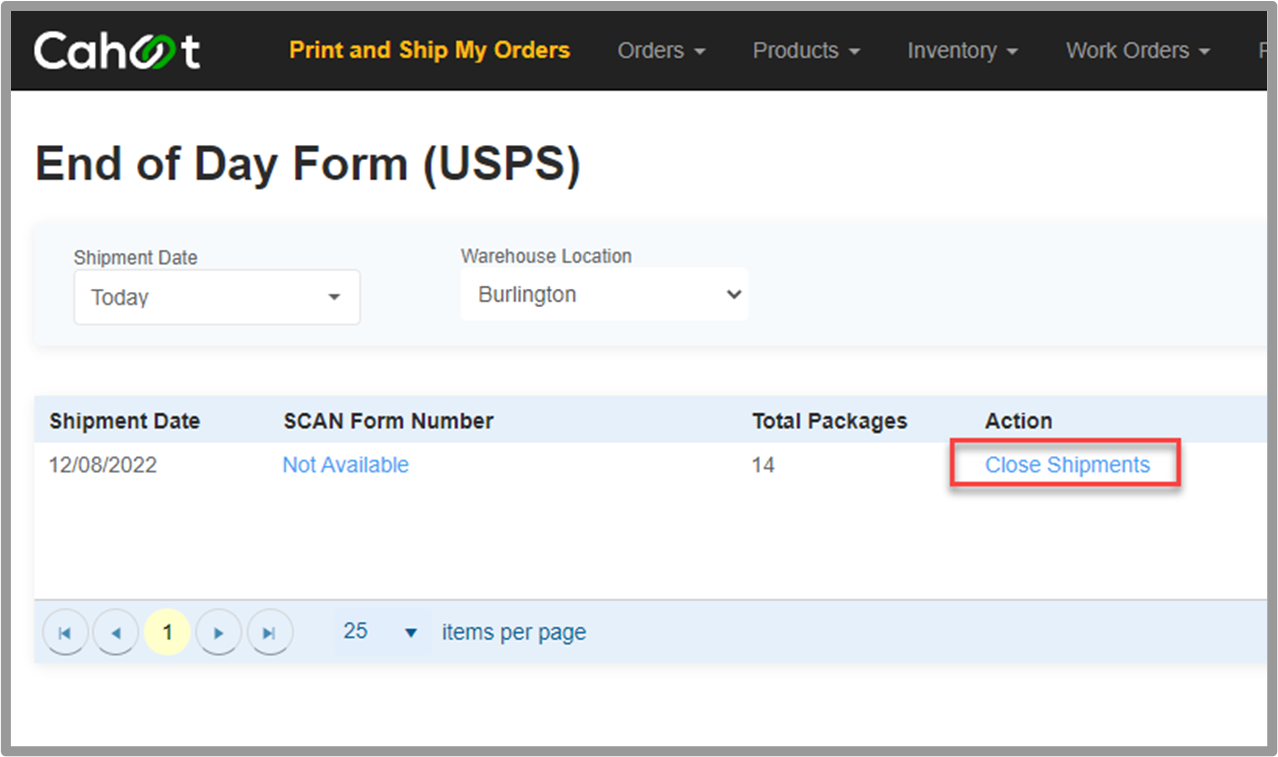
3Once the Shipments have been Closed, you can Print the EOD form. If you have multiple EOD forms, don't forget to Print each one.
4Hand all USPS EOD Forms to the USPS driver when they come to pick up the shipments. Make sure the package count picked up matches the count on the EOD Form.
What Happens Next
- USPS driver scans the manifest form
- Tracking updates automatically appear for all listed packages
- Customers receive tracking notifications
- Package acceptance is confirmed in the USPS system
Common Problems and Solutions
Can't Close Shipments:
- Verify all shipping labels are printed and downloaded
- Check that no orders are still in "pending" status
- Ensure you're within the same day the labels were created
Multiple EOD Forms Appearing:
- This happens when new shipments are processed after closing
- Each form must be printed and closed separately
- Provide all forms to the USPS driver
Package Count Mismatch:
- Count all packages before driver arrival
- Cross-reference with EOD form package count
- Don't let driver leave until counts match
- Contact support if discrepancies can't be resolved
Complete Video Tutorial
Related Articles
- Reconfirm Orders were Handed to Carrier
- Scanning Cahoot EOD Scan Forms
- Barcode Scan Verification Guide